
Unfamiliar app downloads need different responses depending on what happened: saving a file, installing an app, granting access and entering a password are separate events. If you followed a link labelled “ABC8” and now have doubts, start by identifying which of those events occurred. A name or icon alone does not establish who supplied the software.
This guide explains how to organise that check and respond to unwanted access. It does not identify a particular ABC8 download as safe or harmful. If you have not downloaded anything and need to assess the source first, read the app source and device compatibility guide.
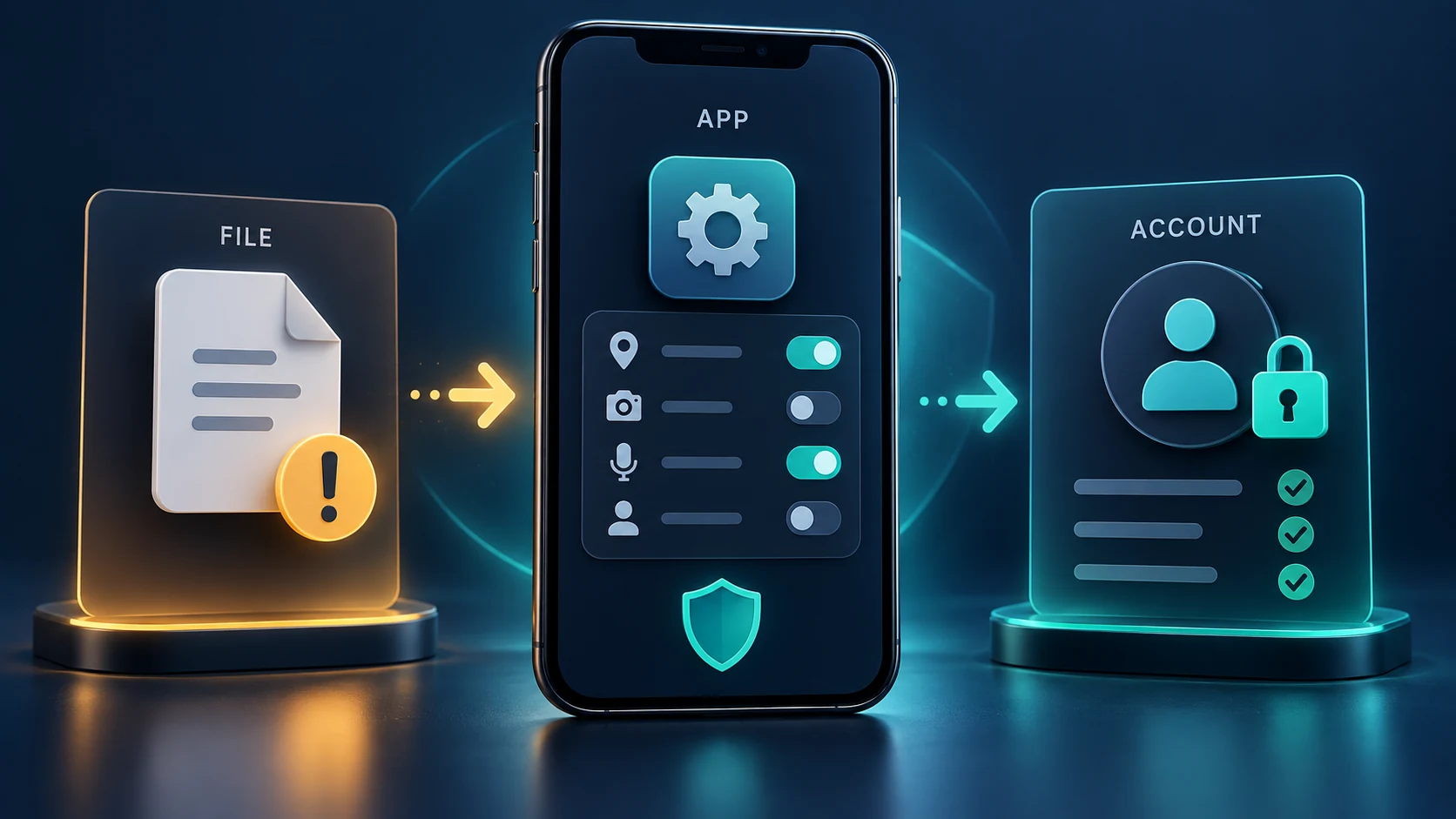
Unfamiliar app downloads: identify what happened first
Write a short timeline using actions you remember, rather than a conclusion such as “my phone was hacked”. The following distinctions help you describe the situation accurately.
| What you observed | What to check next | What it does not prove |
|---|---|---|
| A file appeared in Downloads | Check whether an app was also installed. Do not open the file again to investigate. | A saved installer is not, by itself, evidence that its app is running. |
| A new app appears in device settings | Record its displayed name and review its access before removing software you do not trust. | An icon does not verify the publisher or show all activity. |
| You approved permissions or a profile | Identify the specific access granted and whether it remains active. | Removing the download file does not demonstrate that this access has ended. |
| You entered a password or verification code | Review the affected account through a trusted route. | Uninstalling an app does not retract information already submitted. |
For example, “I saved a file but cancelled the installer” describes a different situation from “I installed it and entered my email password”. If you cannot remember, record that uncertainty. Do not repeat the process to recreate the screens.
When only the download file remains
When reviewing unfamiliar app downloads, check the device’s installed-app list as well as its Downloads folder. If the unwanted file is still present, delete it without opening or sharing it. Keep the source address and the approximate download time if you need to report the link; you do not need to retain a working installer merely to make a basic report.
Also distinguish an app from a browser shortcut or a website notification. A warning displayed inside a web page is not the same as a warning from the operating system. Do not install a second tool offered by the same message to “clean” the first download.
Check an unfamiliar installed app on Android
Google’s Android guidance recommends keeping Play Protect enabled, installing available device and security updates, removing apps you do not trust and checking account security. Open the device’s own Settings app to find the installed application; menu labels vary by manufacturer and Android version.
Record the app name shown there and review its permissions. Remove the untrusted app using the device’s uninstall control. Keep Play Protect active rather than bypassing a warning. If removal is blocked or suspicious behaviour continues, use the phone manufacturer’s support instructions. A reset may be relevant in some cases, but it is not the automatic first response to every downloaded file.
On iPhone, distinguish an app from a configuration profile
An app and a configuration profile are different items. Apple explains that profiles can configure accounts and other device settings. To review profiles, open Settings, then General, then VPN & Device Management. If no profiles appear, Apple states that no device management profiles are installed.
For an unknown profile that should not be present, follow Apple’s removal instructions. Removing a profile also removes its associated settings, apps and data, so understand the effect first. On a school or work device, consult the administrator before deleting apps or profiles. Deleting an app icon should not be treated as confirmation that a separate profile was removed.
Respond separately if you entered account details
If you submitted a password to a page or app you no longer trust, address that account even after removing the software. Use a trusted device and open the account provider directly instead of following the original message.
For a Google Account, Google’s compromised-account guidance includes reviewing recent security events and signed-in devices, securing the password and checking account recovery information. Follow the equivalent official recovery process for other providers. Change a reused password on other affected accounts too, and enable the provider’s available additional sign-in protection. Never send a verification code to someone offering to complete these checks for you.
For an unfamiliar payment, preserve the original transaction reference and contact the financial institution through its independently verified channel. The payment incident evidence guide explains how to separate an unrecognised transaction from a missing credit or duplicate debit.
Document unfamiliar app downloads without exposing more information
A compact incident note is more useful than a large collection of unrelated screenshots. Record the source address, file or app name, approximate time, actions you completed, permissions you remember approving and the exact warning text. Mark anything you do not know as unknown.
For example: “Downloaded at about 8 pm; installation completed; contacts access declined; password entered; app removed at 8:20 pm.” That sequence gives support something concrete to investigate. Keep passwords, one-time codes, recovery codes and full payment details out of shared screenshots. Preserve evidence only where it is safe to do so; do not delay securing an exposed account to assemble a perfect report.
What counts as follow-up?
After responding to unfamiliar app downloads, check the result of each action separately: is the unwanted app absent from the installed-app list, is an unwanted profile gone, and has the affected account’s security review been completed? Keep support case references and note any new alerts.
A quiet phone or an unchanged icon cannot settle every question about earlier access. If unexplained activity persists, tell the device or account provider what continues to happen and what you have already done. Describe the evidence without assuming that every later problem came from the download.
